
Karunakar Gautam
Learn how to turn script into video with AI in minutes. This step-by-step guide covers the exact workflow using Frameloop's scene-level text to video AI tool.
If you have ever written a script and then stared at it wondering how to turn it into a video without a camera, a video editor, or a production budget, script to video AI is the answer you have been looking for.
In 2026, converting a written script into a fully produced video takes less than 10 minutes. No recording equipment, no editing software, no voiceover artists, and no design skills required. This guide walks you through the exact step-by-step process using text to video AI, what to watch out for at each stage, and how to get professional-quality output every single time.
Script to video AI is the process of using artificial intelligence to automatically convert a written script into a complete video with visuals, voiceover, transitions, music, and timing. You provide the text and the AI handles every production step.
This technology is now good enough to produce content that is indistinguishable from manually produced video for the most common use cases including:
The biggest shift in script to video AI in 2026 is not just generation quality. It is the ability to edit the output at a scene level after generation, which we will cover in detail later in this guide.
Before you convert a script to video with AI, you need three things ready.
A clean script
Your script does not need to be perfect but it needs to be structured. Write in short sentences. Each sentence or pair of sentences will typically become one scene in the final video. Avoid long paragraphs because the AI will struggle to break them into natural visual moments.
A good script structure for a 60-second YouTube Short looks like this:
Hook (5 to 7 seconds):
One attention-grabbing statement or question.
Problem (10 to 15 seconds):
Describe the problem the viewer is facing in 2 to 3 sentences.
Solution (25 to 30 seconds):
Introduce the solution and explain how it works in 4 to 6 sentences.
CTA (5 to 7 seconds):
One clear call to action.
A Frameloop account
Go to frameloop.ai and create a free account. No credit card required. Your free credits are enough to generate and test your first several videos before upgrading.
Your voice preference
Decide before you start whether you want to use a voice from Frameloop's library or clone your own voice. If you are building a faceless YouTube channel, setting up voice cloning once means every video you generate will sound consistently like your brand voice. You set it up one time and apply it permanently to every future video.
Log in to your Frameloop account and open a new project. Paste your full script into the text input field.
Frameloop reads your script and automatically identifies natural scene breaks based on sentence structure and topic flow. You can review these scene breaks before generation and adjust them manually if needed.
Pro tip: Write your script with one idea per sentence. The cleaner your sentence structure, the more accurate the AI scene detection will be. Avoid commas connecting two separate ideas in one long sentence.
Frameloop gives you several visual style options for your ai video from script:
For most faceless YouTube content, the faceless video style generates the fastest and works across the widest range of script topics. For branded content and ads, the product style gives you the most visual consistency across scenes.
This step determines how professional your final script to video AI output sounds.
If you are just testing, select a voice from the Frameloop library that matches your content tone. There are natural-sounding voices across multiple accents and languages.
If you are building a channel or brand, set up voice cloning now. The process takes about 5 minutes and requires a short voice sample. Once cloned, your voice is applied to every video you generate going forward. This is the single biggest factor in making your channel sound like a real creator rather than a generic AI tool.
Click generate. Frameloop processes your script scene by scene and produces a complete video with:
Generation typically takes 60 to 180 seconds depending on video length and style. Your credits are only used if the generation succeeds. If it fails for any reason, your credits are returned automatically.
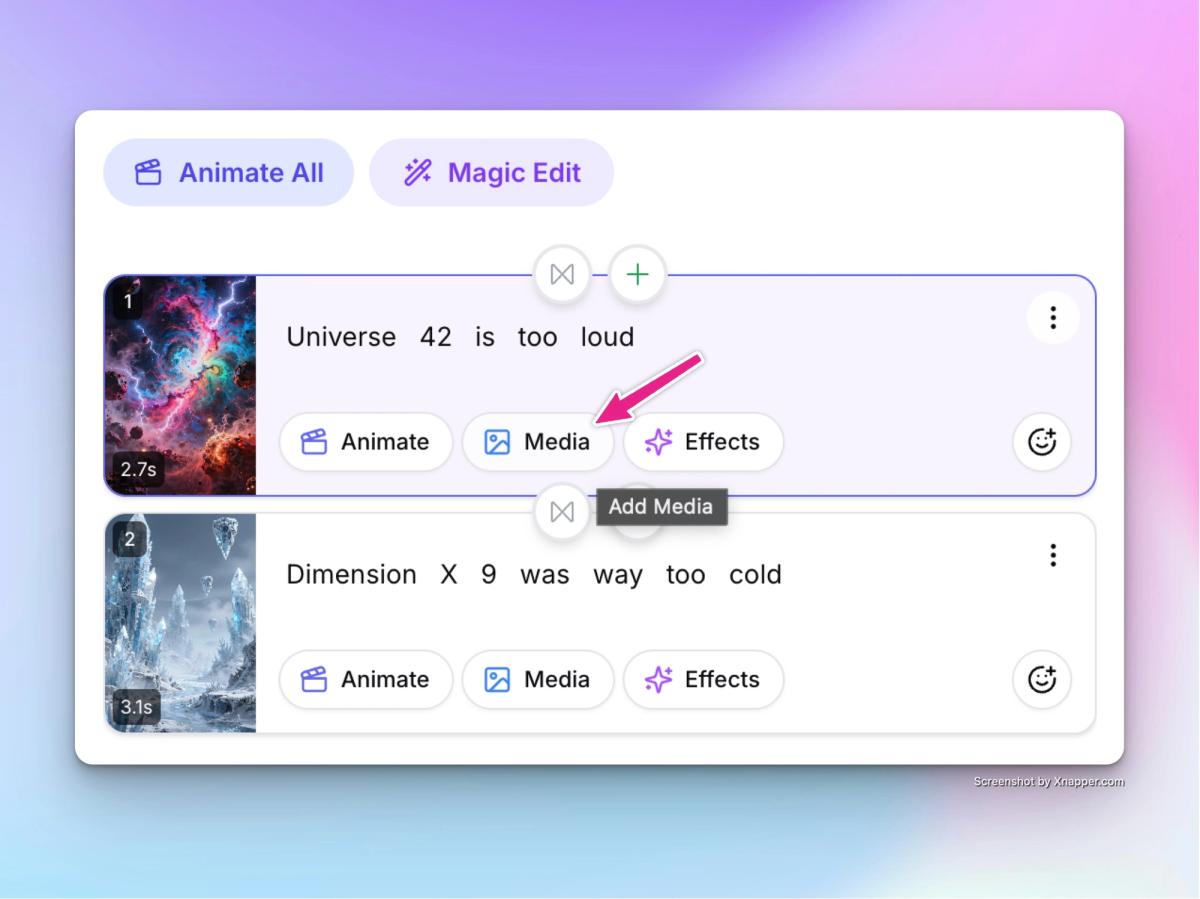
This is where Frameloop separates itself from every other text to video generator on the market.
After generation, you do not receive a locked final video. You receive an editable scene-by-scene timeline. Every scene in your video is individually accessible and individually editable. You can:
Change a visual without touching anything else
If scene 4 generated the wrong type of visual for your topic, click that scene, swap the visual, and the rest of the video stays exactly as it is. No regeneration, no credit cost, no waiting.
Fix one line of voiceover
If the AI mispronounced a word or the tone of one line feels off, edit only that line's voiceover text and regenerate just that scene. The rest of the video is untouched.
Adjust scene duration
If the pacing feels slow in the middle or too fast at the end, drag the scene duration handles to lengthen or shorten individual scenes independently.
Swap background music
Change the background track without affecting the voiceover, visuals, or timing of any scene.
This scene-level editing capability is why Frameloop is the most efficient script to video AI workflow available. Most creators spend 80 percent of their video production time fixing small problems after generation. Scene-level editing reduces that revision time by 70 to 80 percent.
Before publishing, use the built-in YouTube Hashtag Generator to generate 30 relevant hashtags for your video topic. Paste your video title or topic and get an instant list of viral and evergreen hashtags optimized for YouTube Shorts.
This step takes 30 seconds and eliminates the need for a separate hashtag research tool.
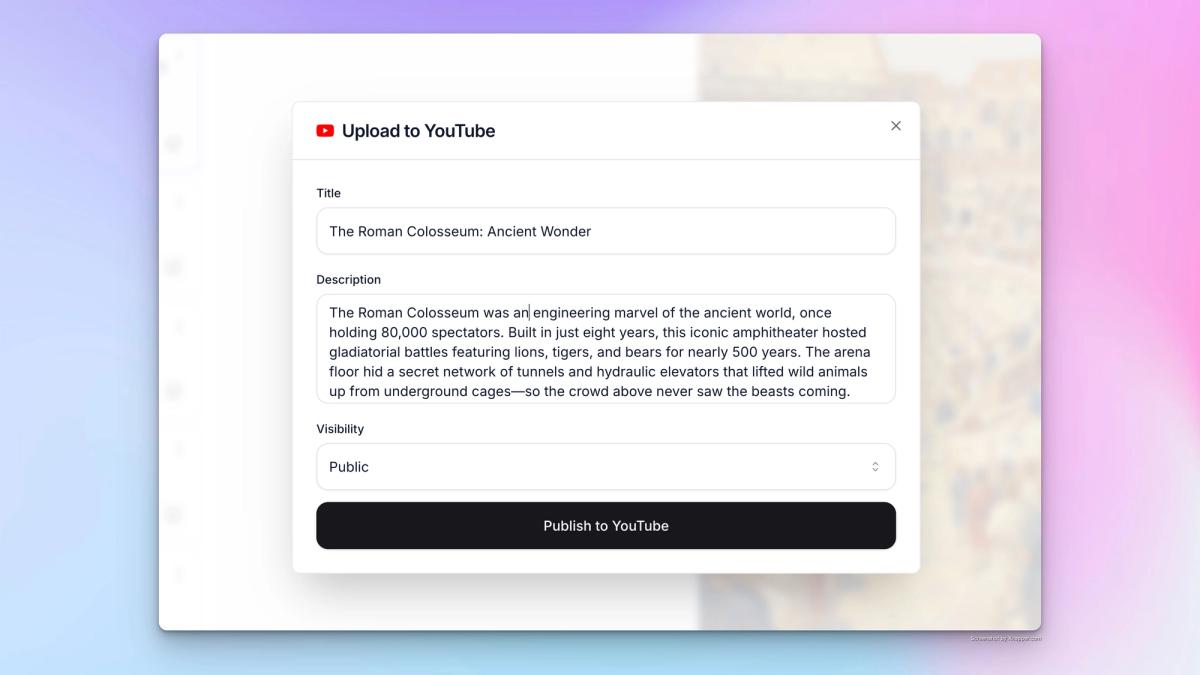
Once your video is ready, publish directly from Frameloop to your connected social accounts. No downloading, no re-uploading, and no manual scheduling across separate platforms.
For creators posting daily content, this single step removes 20 to 30 minutes of friction from every publish cycle. Over the course of a month, that is 10 to 15 hours saved on logistics alone.
Even with the best text to video AI tool, these four mistakes will consistently produce weak output.
Writing scripts that are too long for the format
A 60-second YouTube Short needs a script of approximately 130 to 160 words. If you paste a 500-word script and expect a 60-second video, the AI will either rush through scenes or produce a video that runs far too long for the format. Match your script length to your target video duration before you paste.
Using passive voice throughout
AI visuals respond better to active, descriptive language. Instead of writing "the problem can be solved by using AI tools", write "AI tools solve this problem in under 5 minutes". The second version gives the AI a clearer visual brief for each scene.
Skipping scene review before generation
Frameloop shows you the scene breakdown before you generate. Take 30 seconds to review it. If two unrelated ideas ended up in the same scene or one long scene should be split into two, adjust it before generation. This saves you a scene-level edit after the fact.
Using the same voice for every content type
A documentary-style voice works for educational content but sounds wrong on a fast-paced ad creative. Frameloop's voice library has options across tones and pacing styles. Match the voice to the content type rather than using the same default voice on everything.
Here is the complete daily workflow for a faceless YouTube channel using Frameloop as the text to video generator.
Morning (20 minutes total):
Step 1 — Write or paste your script (5 minutes)
Step 2 — Set visual style and voice (1 minute)
Step 3 — Generate video (2 minutes waiting)
Step 4 — Review and edit scenes (7 minutes)
Step 5 — Generate hashtags with Hashtag Generator (1 minute)
Step 6 — Publish directly to YouTube (1 minute)
Step 7 — Repeat for second video if needed (3 minutes)
Creators using this workflow consistently publish 1 to 3 videos per day without a team, without recording equipment, and without editing software. The entire production stack lives inside Frameloop.
The most common criticism of ai video from script tools is that the output feels generic. Here are four techniques that eliminate that problem entirely.
Use specific language in your script
"This tool saves time" generates a generic visual. "This tool cuts your video production time from 4 hours to 20 minutes" generates a specific, story-driven visual. The more specific your script language, the more distinctive your AI visuals will be.
Clone your voice
Nothing makes an AI video feel more human than hearing a real, consistent voice. Voice cloning in Frameloop takes 5 minutes to set up and permanently removes the generic AI voice problem from every video you create.
Edit scene visuals after generation
Use the scene-level editor to replace any generic visual that the AI defaulted to. Swapping one visual per video takes 60 seconds and makes the final output feel intentional rather than automated.
Write a strong hook in the first scene
The first 3 seconds of your video determine whether viewers keep watching. Write your hook as the most specific, surprising, or provocative sentence in your entire script. The AI will generate the most prominent visual for the first scene, so give it the strongest line to work with.
Script to video AI in 2026 is not a future promise. It is a working production workflow that thousands of creators use daily to publish consistent, professional content without cameras, editors, or production budgets.
Frameloop gives you the free tier to test this workflow right now with no credit card required. Generate your first ai video from script, edit it scene by scene, and publish it directly to YouTube in under 20 minutes.
Your Script Is Ready. Your Video Is One Click Away.
You have the script. Frameloop handles everything else. Visuals, voiceover, music, scene editing, and publishing to YouTube — all in one place, all in under 20 minutes.
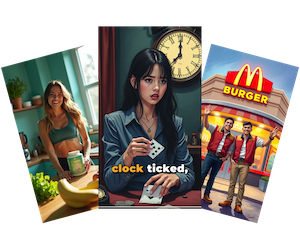
Got great video ideas but need help bringing them to life? Frameloop AI makes it easy to create professional faceless videos with AI-generated visuals, voiceovers, and editing.
Try Frameloop AI For Free