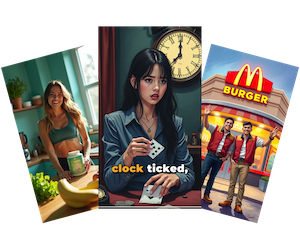
You can now go from a rough story idea to an animated short clip without leaving FrameLoop. Storyboard to Video is a new workflow in Create that plans your scenes, generates a multi-panel storyboard, and animates it into a finished video.
Try it here: storyboard-to-video.
How it works
1. Describe your story
Paste a brief idea or a structured scene breakdown (numbered scenes, time ranges, Visual: / Voiceover: / Dialogue: blocks). Choose a clip length from 4–15 seconds, then hit Continue. AI analyzes your input and builds a timed scene breakdown automatically.
2. Refine the breakdown
Edit each scene’s visual description, add on-screen text, voiceover, and dialogue, and attach characters and reference objects for visual consistency. Scene count stays fixed so timing stays aligned with your clip length.
3. Pick a visual style
Choose from preset styles, browse your style library, or define a custom look. The AI also extracts aesthetic hints from your idea when possible.
4. Configure video settings
- Aspect ratio: 16:9, 9:16, or 1:1
- Resolution: 720p or 1080p
- Quality tier:
- Advanced — cinematic motion, ideal for social content
- Max — highly realistic motion, ideal for short films and ads (Seedance 2)
5. Generate storyboard → Generate video
First, create a multi-panel storyboard sheet (character design + scene panels in one image). Review it, regenerate if needed, then animate it into your final clip. Credit estimates are shown upfront for both steps.
Pricing & access
Storyboard and video generation requires a paid plan. You can explore the workflow and edit your breakdown on any plan; upgrading is prompted when you generate.
Video credits are calculated per second based on tier and resolution:
Best for
- Animated character shorts and comedy skits
- Concept previews before a full production
- Social clips where you want storyboard → motion in one pass
- Creators who think in scenes, not full scripts