

Karunakar Gautam
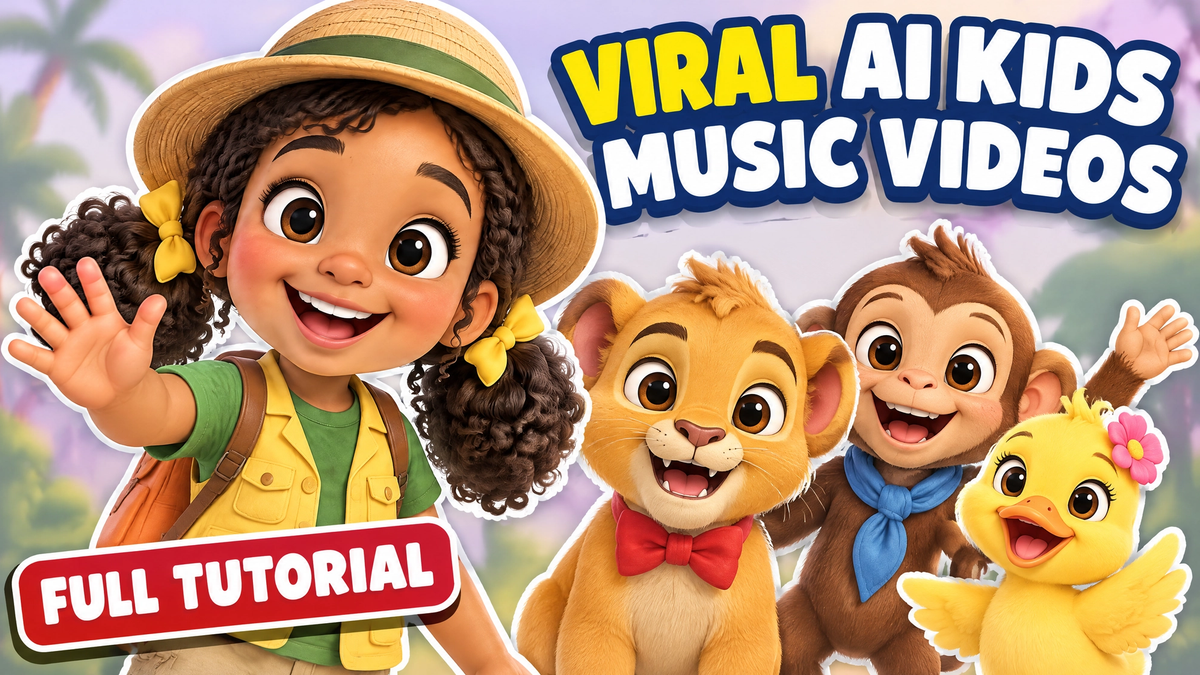
Make an animal counting song and a full animated video with the same characters in every scene. Copy the exact prompts, lyrics and settings used.
Prefer to watch? Watch the full tutorial on YouTube.
You can make a kids song and a full animated video in one tool. It takes about five steps. The characters stay the same in every scene.
This post shows exactly how I did it. Every prompt below is the real one I used. Copy it, paste it, and change anything you’d like.
The final result: a 1 minute 16 second song, "Count with Animals", with a host named Mia and ten animals, one for each number.
Kids songs are one of the biggest things on YouTube. Cocomelon has more than 200 million subscribers, and Baby Shark was the first video to pass 10 billion views.
Look at those videos. They are simple. A catchy song. Cute animals. Bright colors. A chorus that comes back again and again.
That is what we are making.
YouTube does not like lazy, repeated AI videos. Its Partner Program rules talk about "inauthentic" content: mass-produced videos that look the same. You can read the YouTube policy here.
So don't press one button and hope. Do these three things:
1. Write real lyrics.
2. Keep the same characters in every scene.
3. Check every scene and fix what looks wrong.
That is what the six steps below do.
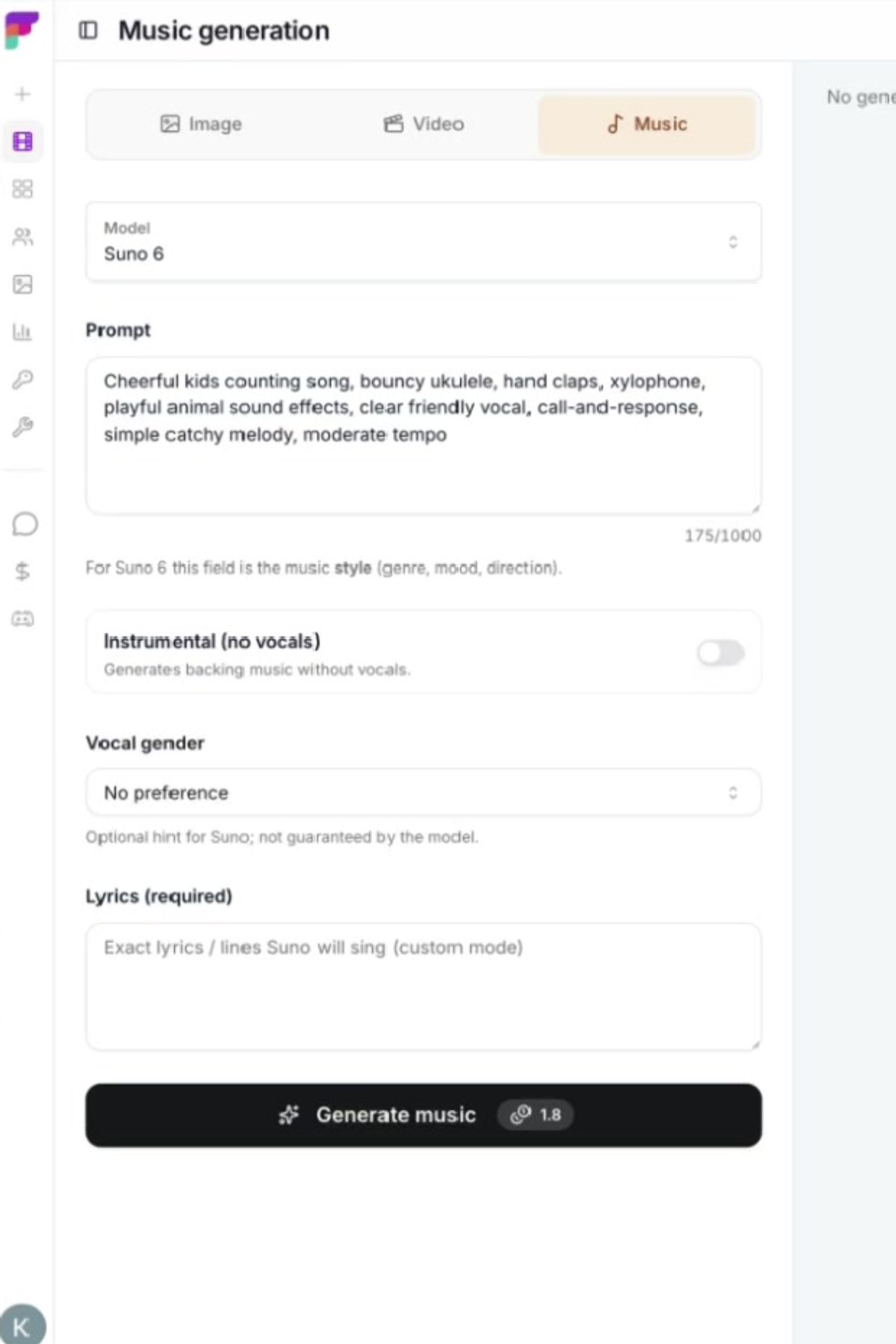
Open Frameloop and go to the studio. Pick the Music tab. The model is Suno 6.
This tells the AI how the song should sound. Keep it simple. Kids songs work best with a clear voice and a steady beat.
Cheerful kids counting song, bouncy ukulele, hand claps, xylophone, playful animal sound effects, clear friendly vocal, call-and-response, simple catchy melody, moderate tempo
The idea is easy. One animal for every number, from one to ten. Each animal makes its own sound, so kids can sing along.
The chorus is short and comes back twice. Kids learn songs by hearing the same lines again and again. Always give your song a repeating chorus.
[Verse 1]
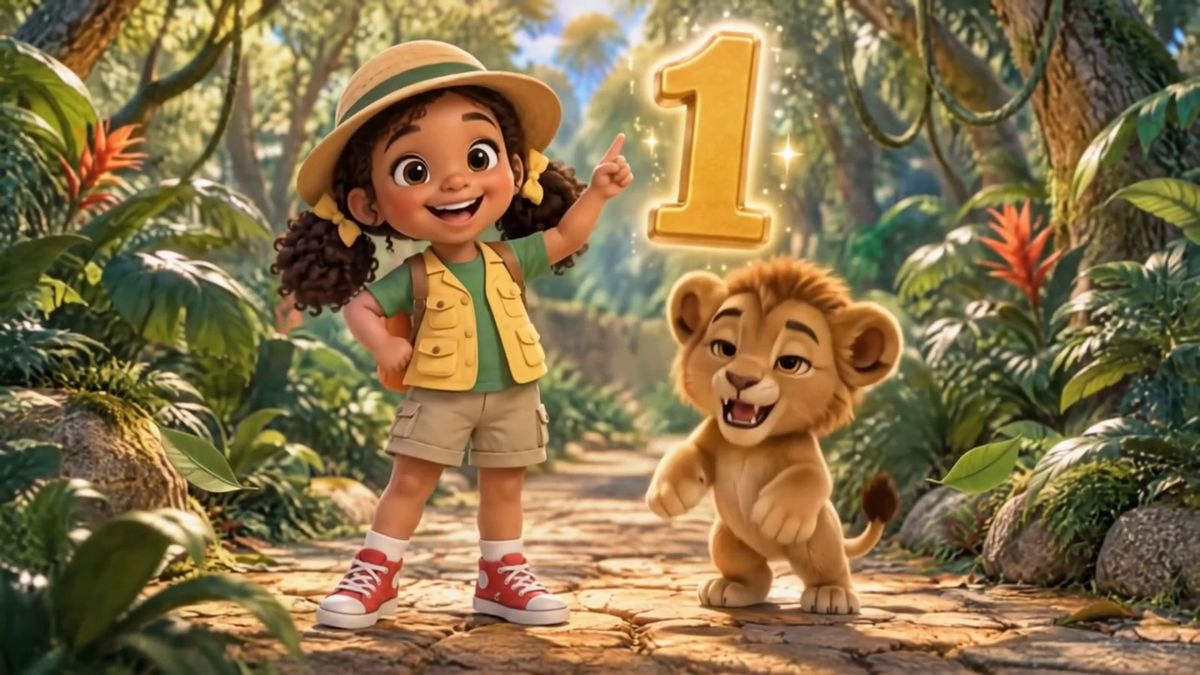
One little lion roars hello, roar roar roar!
Two little monkeys swing on low, ooh ooh ah ah!
Three little ducks go quack quack quack,
Four little frogs go hop hop back!
[Chorus]
Count with the animals, one, two, three!
Count with the animals, come sing with me!
Clap your hands and stomp your feet,
Counting animals is so sweet!
[Verse 2]
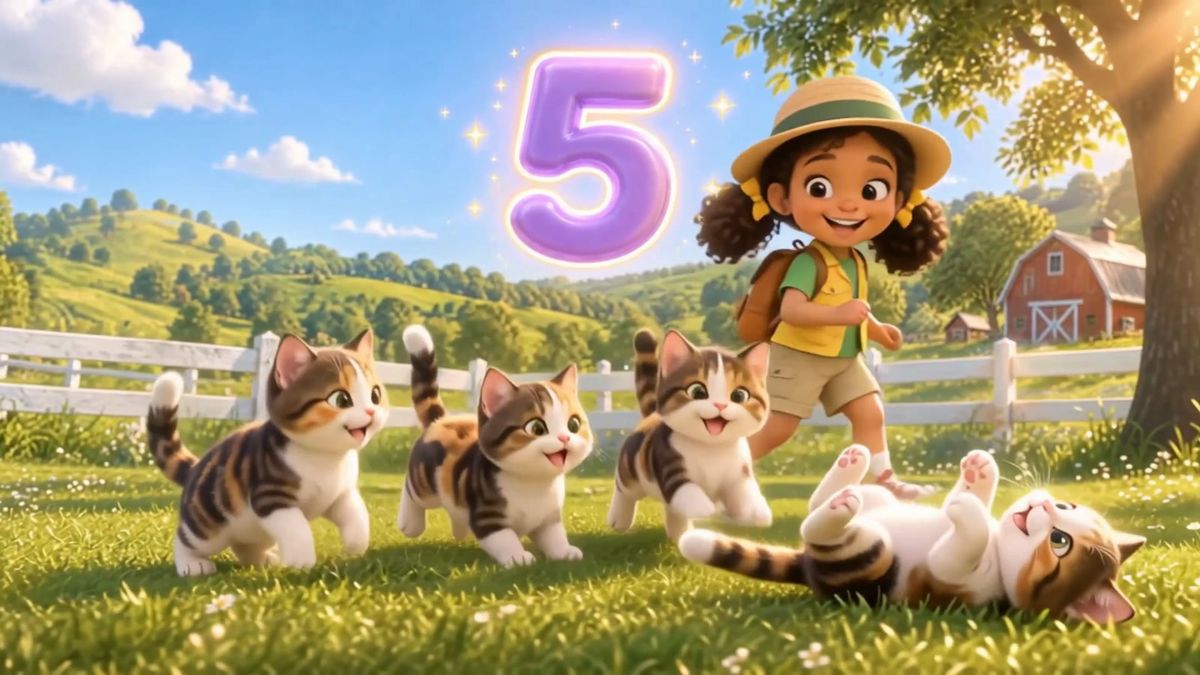
Five little cats go meow meow meow,
Six little cows go moo moo now,
Seven little sheep go baa baa baa,
Eight little birds go tweet tweet ha!
[Verse 3]
Nine little pigs go oink oink oink,
Ten little elephants, trumpet, honk honk!
One to ten, we counted them all,
Animals big and animals small!
[Chorus]
Count with the animals, one, two, three!
Count with the animals, come sing with me!
Clap your hands and stomp your feet,
Counting animals is so sweet!
Click Generate music. You get two versions. Listen to both and keep the one with the clearer voice.
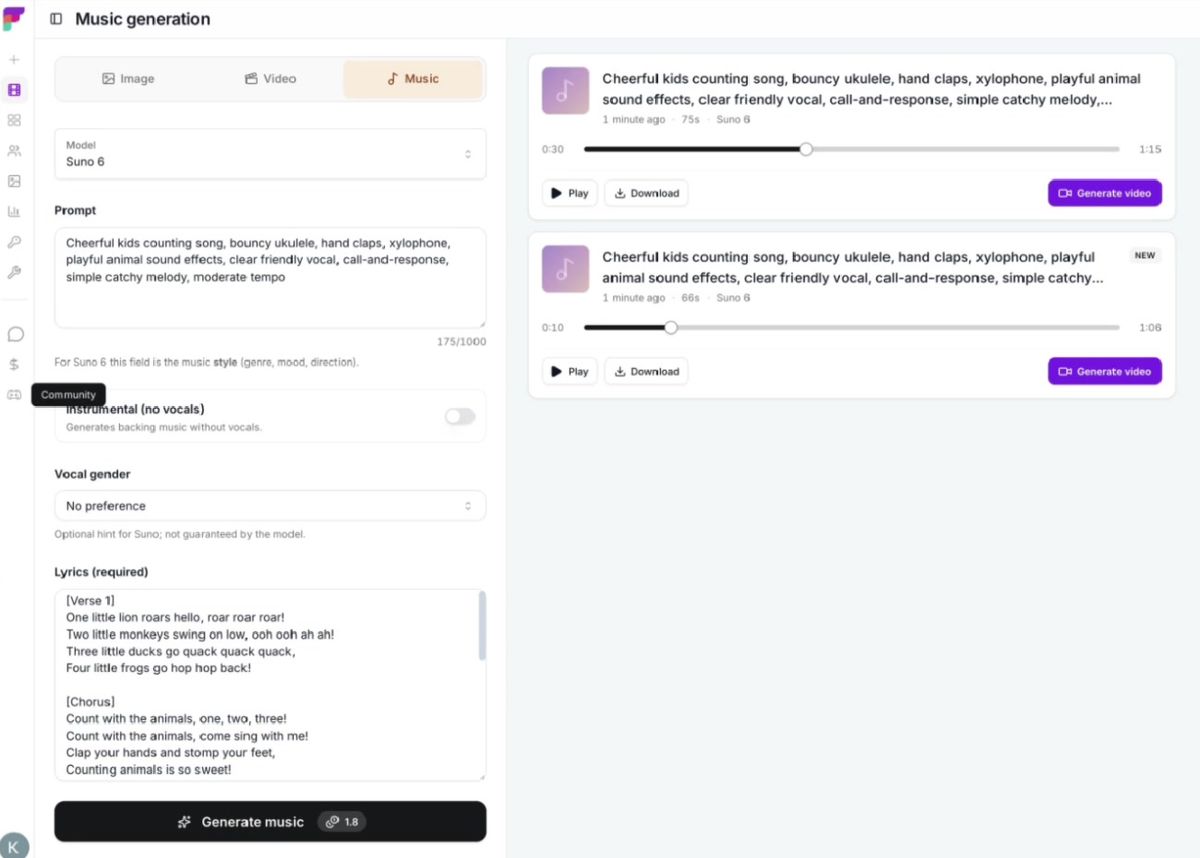
You now have your own kids song. No singing and no music skills needed.
This is the big step.
Here is the problem with most AI videos. The character looks different in every scene. For a counting song, that is a real problem. Kids need to know their animals.
In Frameloop you make a character once. It stays the same in every scene.
I made the host first. Her name is Mia. She is a young explorer with curly pigtails and a yellow safari vest.
Cute 3D cartoon character for toddlers, round soft shapes, big friendly eyes, big smile, bright pastel colors, soft lighting, plain white background, full body, front view.
Mia, a cheerful 6-year-old girl explorer, warm brown skin, two curly black pigtails tied with yellow ribbons, big sparkling brown eyes, rosy cheeks, a wide happy smile. She wears a bright yellow safari vest, a green t-shirt, khaki shorts, red sneakers, and a small orange backpack. She has a round straw explorer hat with a green band.
The first line is a style line. I put it at the start of every character, so the whole cast looks like it belongs together.
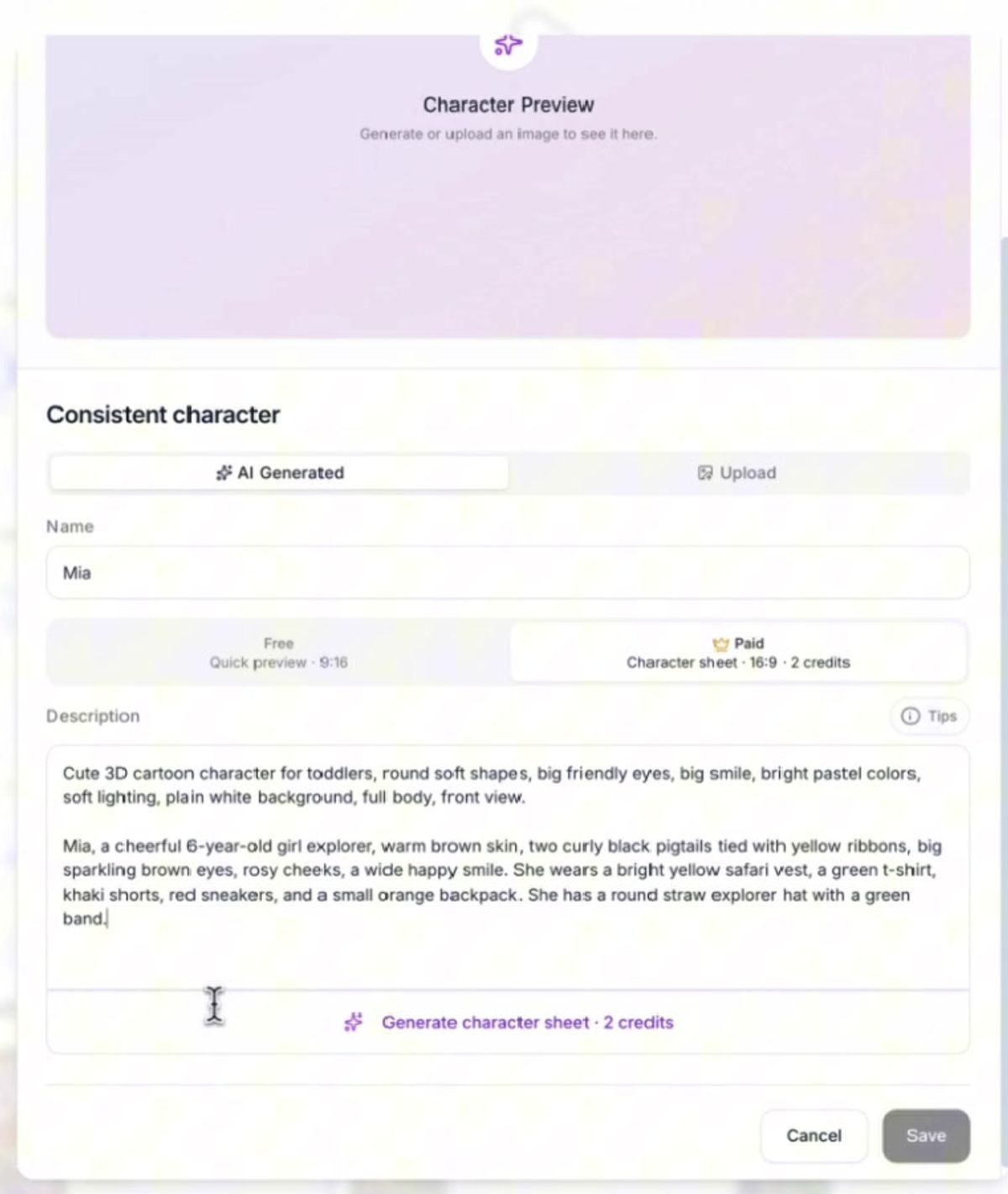
Choose the paid option to get a character sheet. It shows the front, side and back. The AI uses it to keep her the same in every scene. It cost 2 credits.
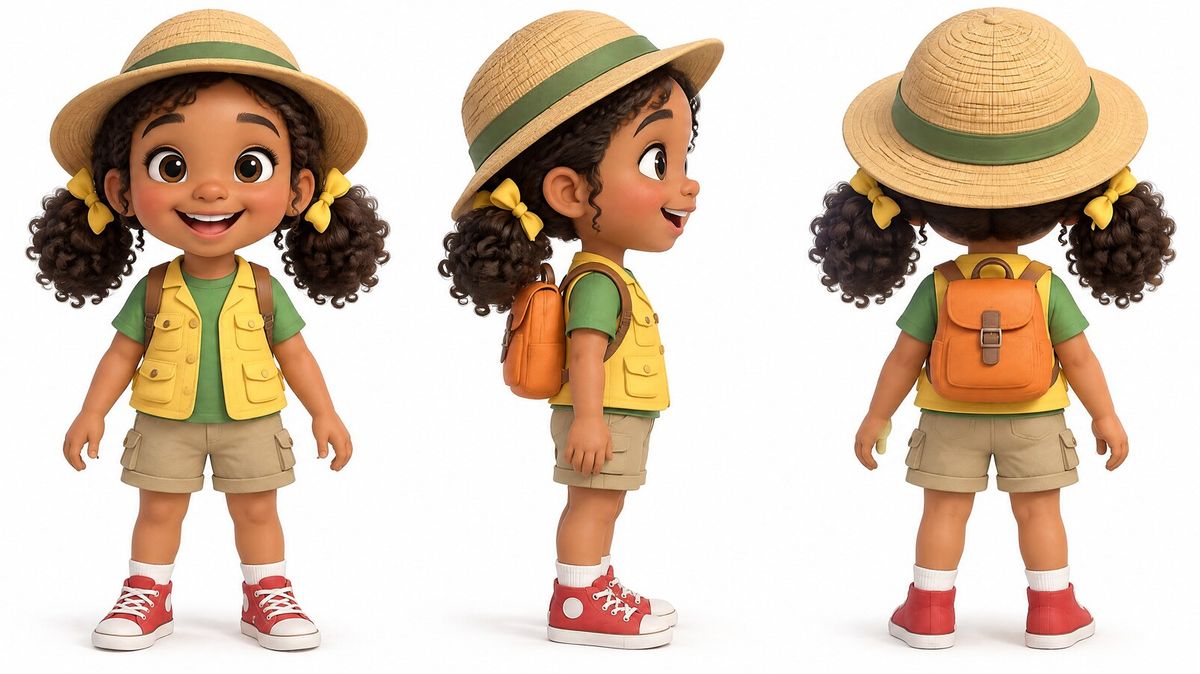
Tip: You don't need to create characters for all ten animals. Save the characters that show up the most. In this video I saved only Mia. The animals came from the song lyrics and the video direction.
One rule for kids videos: big eyes, round shapes, soft colors. It makes everything look friendly.
Click Generate video on your song. This opens the music video page.
This box is where you tell the AI your story. It has a 400-character limit. This is the exact text I used:
Bright 3D cartoon for toddlers. Mia the Explorer is the host. She appears in the first scene to wave and say hello, then walks beside each animal as it is counted, pointing at the number. Each animal appears with a big glowing number, bounces to the beat. Simple sunny jungle and farm. In the last scene she dances with all ten animals.
Then click Add character and pick Mia.
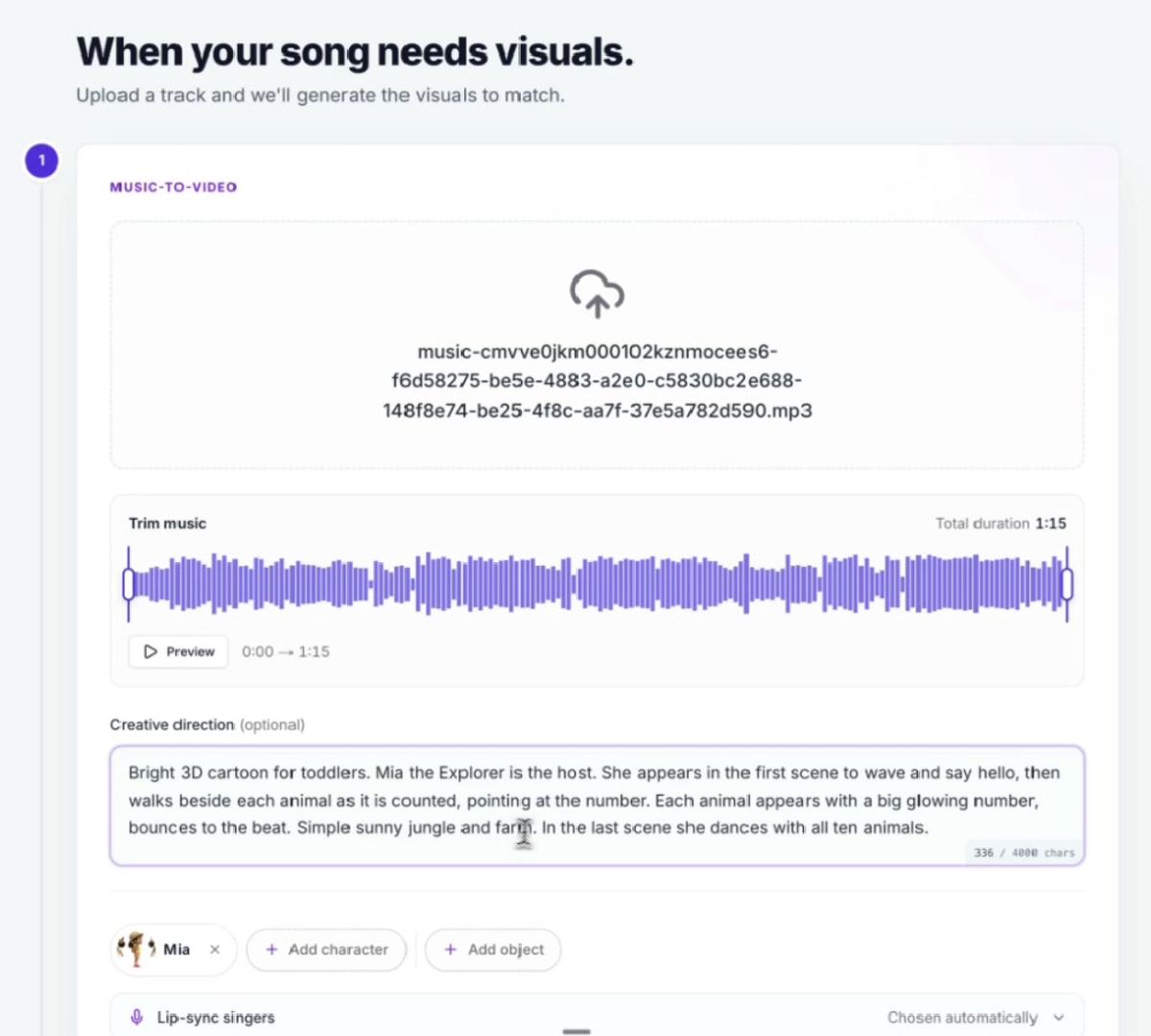
I kept the backgrounds simple on purpose. Busy backgrounds make small kids lose track of the animal. One animal. One number. One clean background.
These are the exact settings I picked:
| Setting | What I chose |
|---|---|
| Media type | AI Animated Video |
| Animation quality | Max (includes lip sync) |
| Aspect ratio | 16:9 |
| Resolution | 720p |
| Lip sync | On |
| Visual style | Auto |
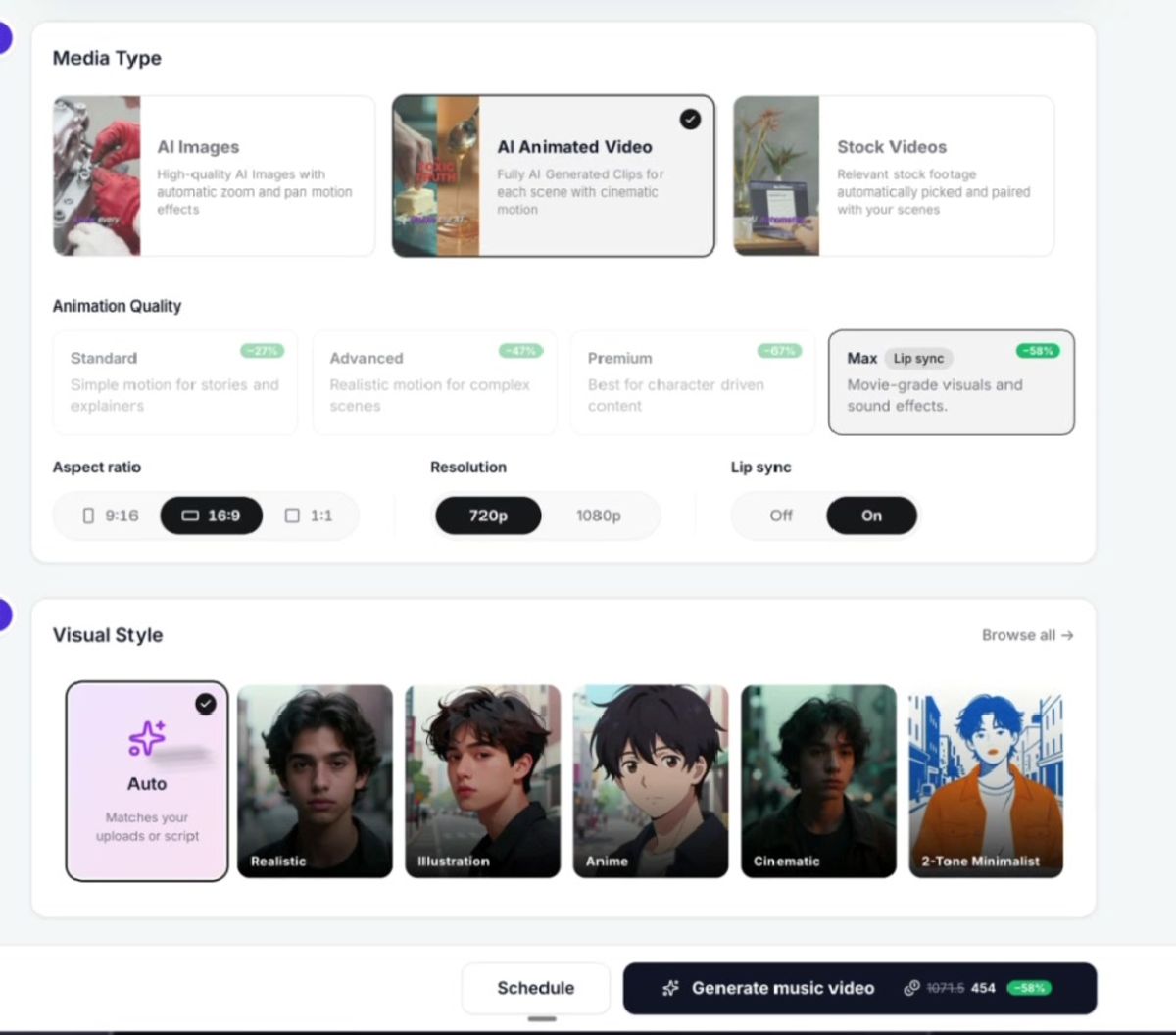
Click Generate music video. This takes a few minutes.
Your video is ready. But before you call it done, check each scene.
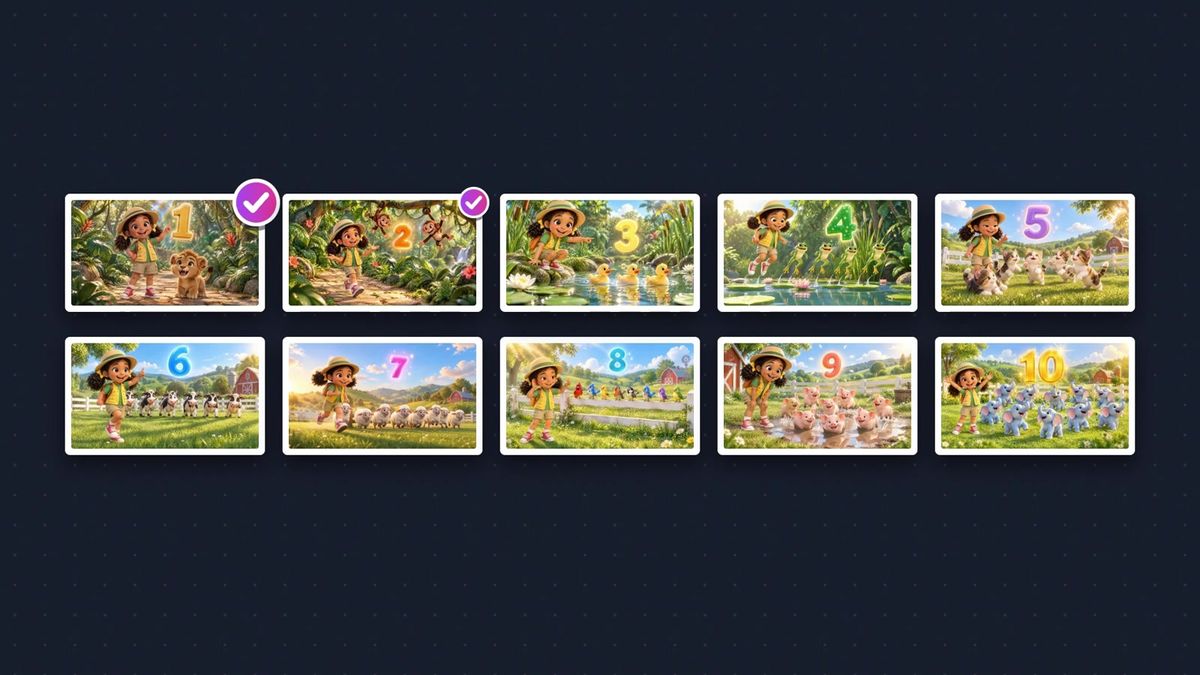
The tool plans the scenes for you. This song became 16 scenes. Each scene has its own picture, and you can see all of them on the left.
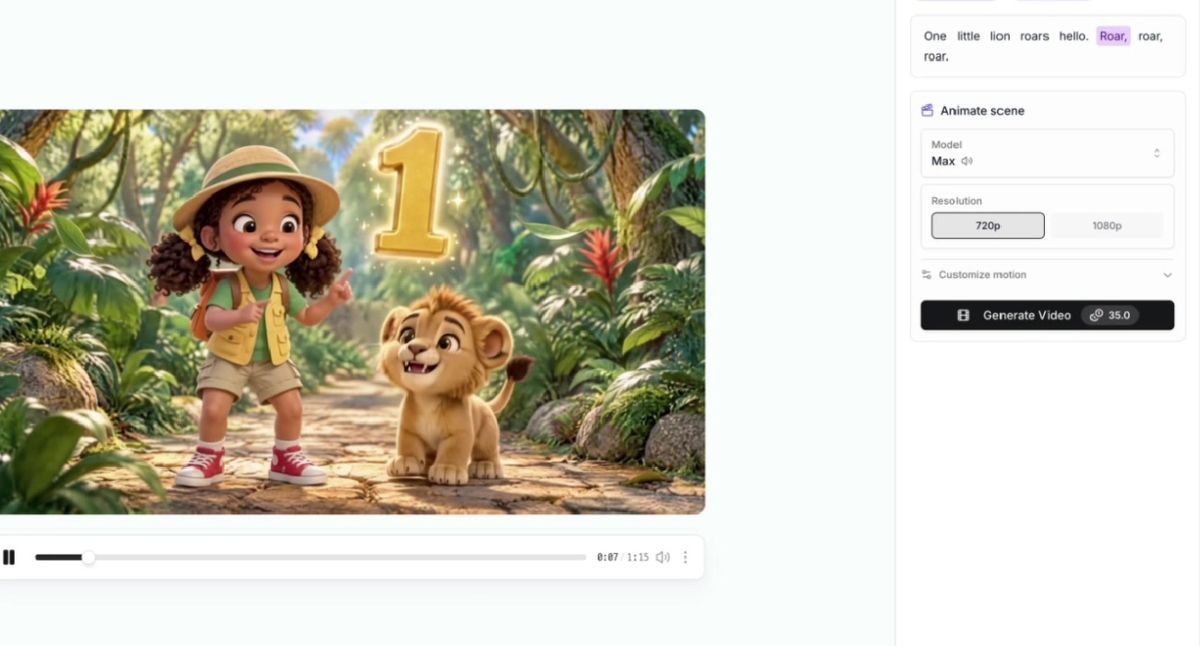
Most scenes look great. But a few might not. This happens sometimes. AI is not perfect, so we just fix it.
You have three options:
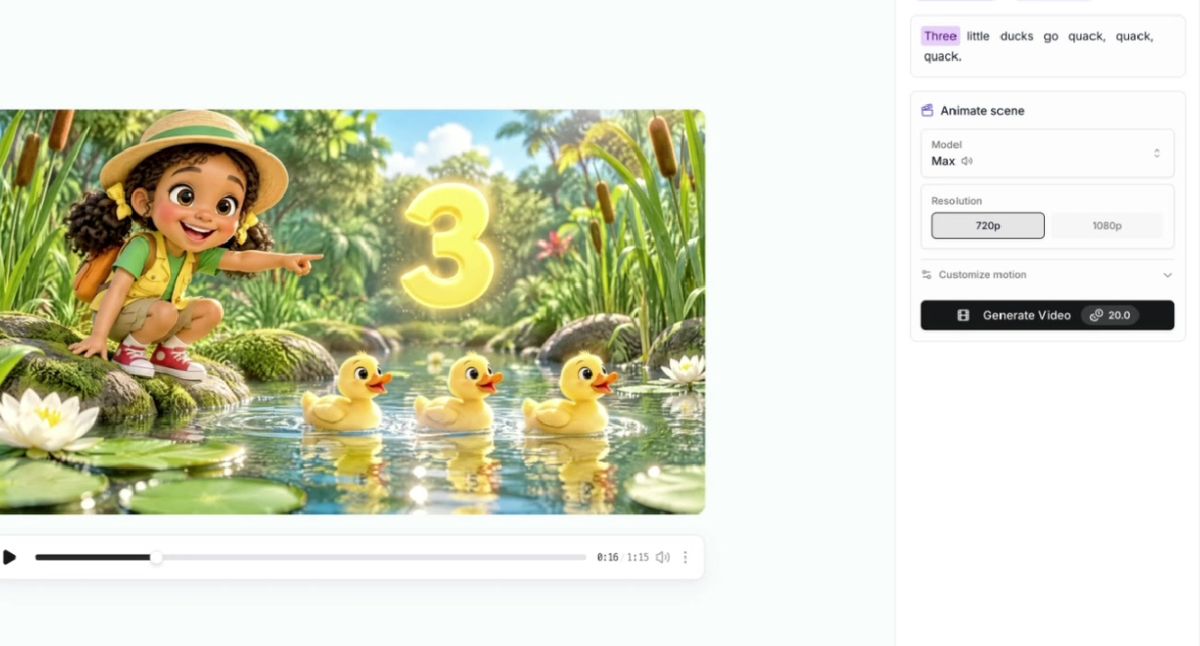
Here is the check I always do: does every number match the animals on screen? In a counting video, a wrong count is the worst mistake. Go through scenes one to ten and make sure each is right.
Click Render. When it is done, you have your finished video.
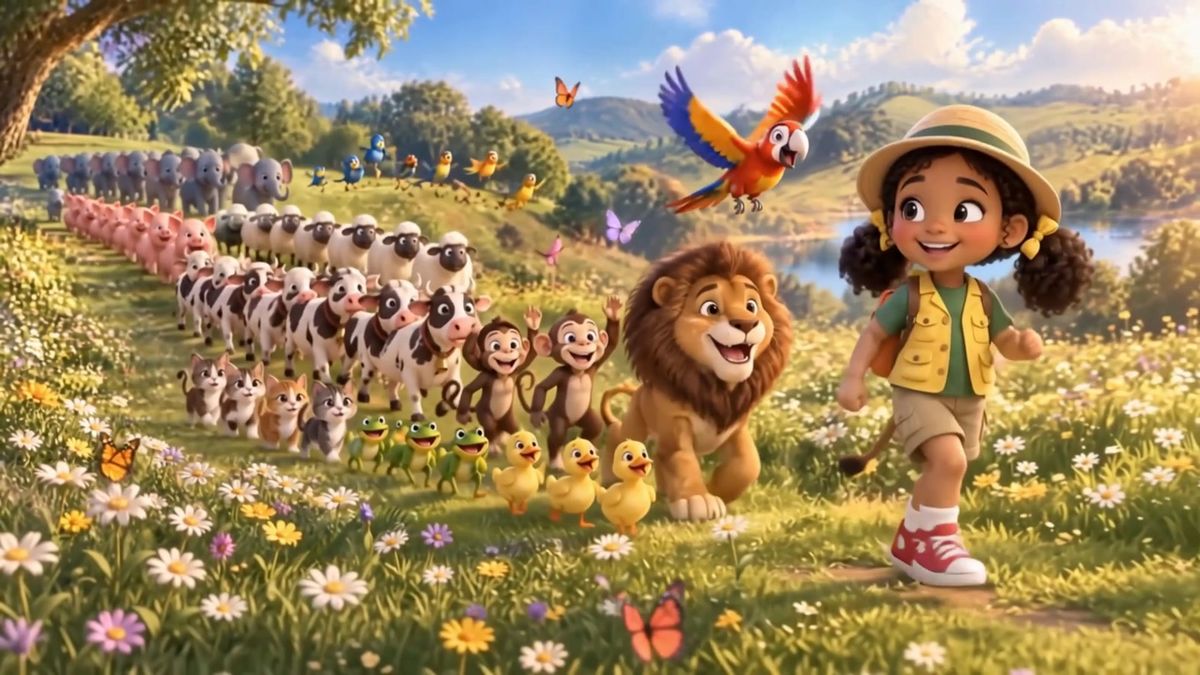
Here is the result. Mia waves hello, then walks with each animal as the number appears.
And in the last scene, all ten animals march with her.
1. Title. Put the result in it. For example: "Count 1 to 10 with Animals | Kids Learning Song".
2. Thumbnail. One big face and one big number. Keep the text short.
3. AI setting. Mark your video as AI generated. YouTube asks for this.
4. Playlist. Put the video in a series, like "Learn with Animals".
Then make the next one, such as colors or the alphabet, with the same characters. That is how a channel grows. The same characters, again and again, is what viewers remember.
Want to make your own? Open Frameloop, paste the prompts above, and follow the steps. You can also watch the full video.
Got great video ideas but need help bringing them to life? Frameloop AI makes it easy to create professional faceless videos with AI-generated visuals, voiceovers, and editing.
Try Frameloop AI For Free